
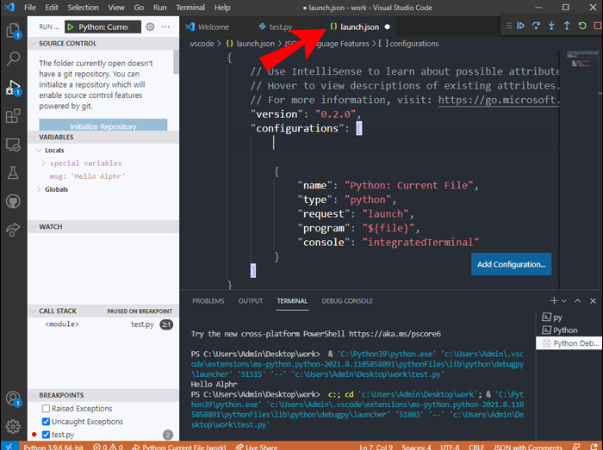


Introduction
Visual Studio is widely regarded as one of the most powerful and feature-rich development environments used by programmers all over the world. Whether someone is just starting their journey with basic programming or is an experienced developer working on large-scale enterprise applications, Visual Studio brings together all the essential tools in a single, unified platform.
This guide is designed to break things down in a simple and easy-to-understand way. The goal is to help you confidently learn how execution works, how debugging helps you find and fix issues, and how project management is handled efficiently inside the IDE. Instead of overwhelming technical jargon, everything is explained in a practical, beginner-friendly manner so you can actually apply what you learn while coding.
Understanding the Visual Studio Execution Environment

Before you start writing or running programs, it’s important to understand how Visual Studio works behind the scenes. The IDE is not just a text editor—it is a complete ecosystem that compiles, builds, and executes your applications using integrated tools.
When developers search for how to run code in visual studio, they are usually trying to understand this entire workflow:
- Writing source code
- Building the project into executable format
- Running it using debugger or runtime engine
Visual Studio handles all of this automatically, which makes development faster and less error-prone compared to manual compilation methods.
At its core, execution depends on the type of project you create—console apps, web apps, desktop apps, or APIs all behave slightly differently.
Setting Up Visual Studio for Smooth Execution
A proper setup ensures your coding experience is smooth from the beginning. Without correct configuration, even simple programs may fail to run.
First, install Visual Studio from Microsoft’s official website and select the appropriate workload. For most beginners, “.NET Desktop Development” is enough.
After installation, make sure you have:
- Required SDKs installed (.NET, Python, or Node.js depending on project)
- Proper project templates selected
- Latest updates applied
Once everything is installed correctly, you are ready to move into real development.
Many beginners first explore how to run code in visual studio at this stage because setup directly affects execution success.
Creating and Preparing Your First Project
Creating a project is the foundation of working in Visual Studio. The IDE automatically structures files and dependencies for you.
To create a project:
- Open Visual Studio
- Click “Create New Project”
- Choose a template (Console App recommended for beginners)
- Name your project and select location
- Click Create
Once created, Visual Studio generates default files like Program.cs or Main file depending on language.
At this point, you can write a simple program such as printing “Hello World” to test execution.
Running Code Using Built-In Execution Methods
Execution in Visual Studio is simple but powerful. There are two main ways to run your program depending on your needs.
The first method is running with debugging enabled. This allows you to pause execution, inspect variables, and track program flow. The second method is faster and skips debugging features.
When learners search for how to run code in visual studio, these two methods are the most commonly used starting points for understanding execution.
Both methods compile your code first and then run it, ensuring you always execute the latest version of your program.
Debugging and Understanding Program Flow
Debugging is where Visual Studio truly shines. It allows you to see exactly what your program is doing step by step.
You can:
- Set breakpoints to pause execution
- Watch variable values in real time
- Inspect memory and call stacks
- Step through code line by line
This is extremely helpful when your program behaves unexpectedly.
Many developers deepen their understanding of how to run code in visual studio by learning debugging techniques because execution and debugging are tightly connected in real-world development.
Without debugging, finding errors in large projects would be extremely difficult.
Execution Methods Comparison Table
To better understand the different ways you can run programs, here is a simple comparison:
| Execution Method | Shortcut | Speed | Debug Support | Best Use Case |
|---|---|---|---|---|
| Start Debugging | F5 | Medium | Yes | Development and testing |
| Run Without Debugging | Ctrl + F5 | Fast | No | Quick output check |
| Attach to Process | Manual | Variable | Yes | Advanced debugging |
| Terminal Execution | Command line | Fast | No | Automation scripts |
This comparison helps clarify how to run code in visual studio depending on your development needs and workflow preferences.
Common Errors and How to Fix Them
Even experienced developers face issues while running programs. Visual Studio provides helpful error messages, but understanding them is important.
Build Errors
These occur when syntax is incorrect or dependencies are missing. Always check the Error List window carefully.
Missing Packages
Sometimes your project may require external libraries. You can install them using NuGet Package Manager.
Runtime Errors
These happen during execution and are often related to logic issues or invalid input.
Startup Configuration Issues
Make sure the correct startup project is selected in multi-project solutions.
Fixing these issues improves your understanding of program execution and helps you master how to run code in visual studio effectively.
Best Practices for Smooth Development Workflow
Writing clean code is just as important as running it correctly. A good workflow improves speed and reduces errors.
Always follow these practices:
- Keep your code organized into functions
- Use meaningful variable names
- Regularly build and clean your solution
- Use version control like Git
- Avoid unnecessary dependencies
These habits help ensure your projects run smoothly every time you execute them.
Advanced Execution Techniques for Developers
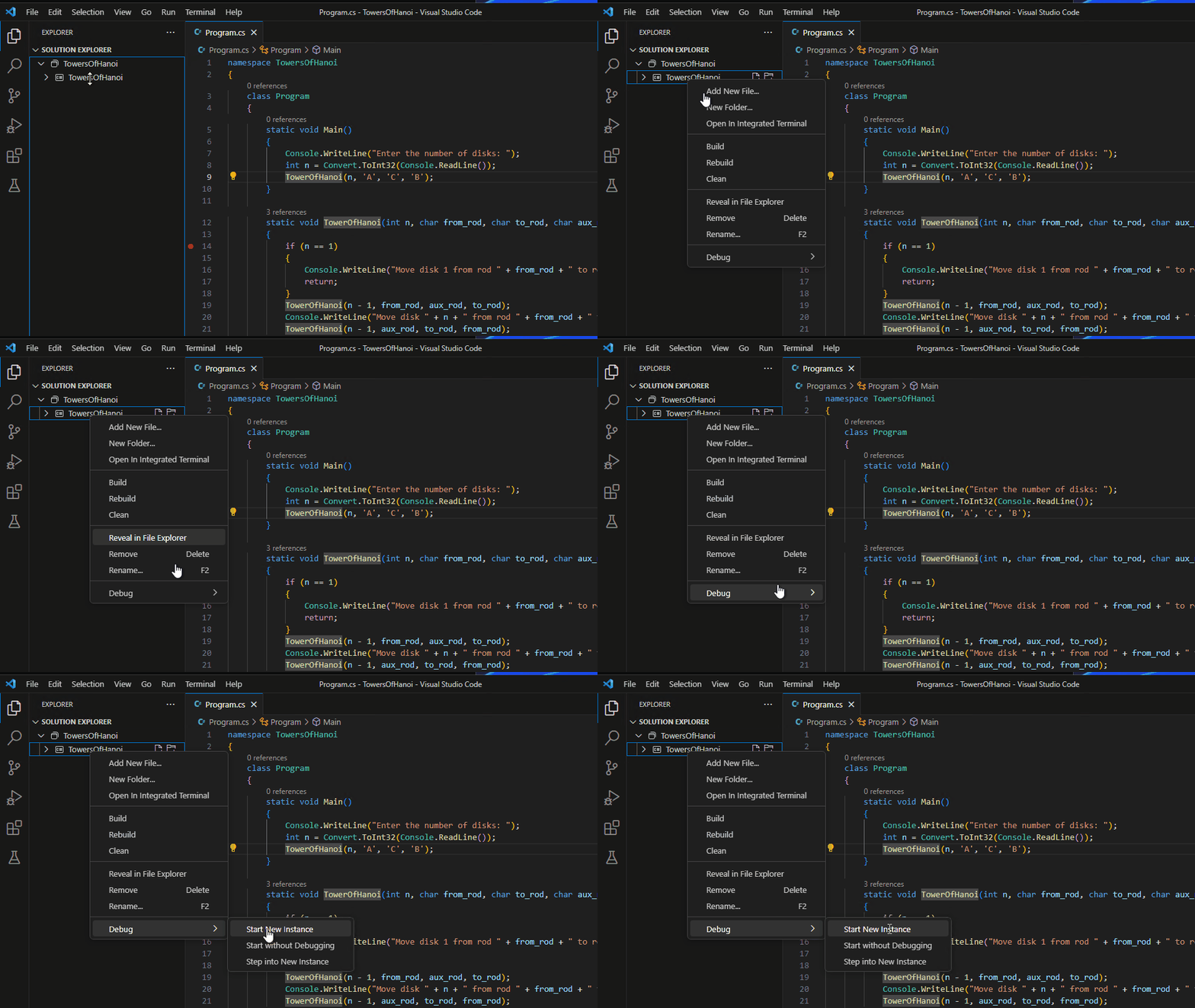
Once you are comfortable with basics, Visual Studio offers advanced features to improve productivity.
You can use Hot Reload to modify code while the program is running. This saves time during testing and debugging.
Another useful feature is parallel project execution, which allows multiple projects in a solution to run simultaneously.
Developers who fully understand how to run code in visual studio often use these advanced features to speed up development cycles significantly.
You can also use extensions and shortcuts to further optimize your workflow.
Practical Workflow Example
A typical development cycle in Visual Studio looks like this:
- Write code in editor
- Build project to check errors
- Run using debugger or direct execution
- Fix issues if needed
- Repeat cycle until final output is correct
This cycle is repeated many times during real-world software development.
Understanding this workflow is key to mastering execution inside the IDE.
Tips to Improve Execution Speed
Performance matters when working on large projects. Here are some practical tips:
- Disable unused extensions
- Use lightweight project templates when possible
- Avoid unnecessary rebuilds
- Use incremental builds
- Close unused solution tabs
These optimizations help your system run faster and improve overall productivity.
Frequently Asked Questions (FAQs)
What is the easiest way to run a program in Visual Studio?
The easiest way is to press F5 or Ctrl + F5 depending on whether you want debugging or not.
Why is my code not running in Visual Studio?
Usually, it is due to build errors or missing dependencies. Check the error list first.
Can I run multiple projects at once?
Yes, you can configure multiple startup projects in solution settings.
Is Visual Studio good for beginners?
Yes, it is one of the best IDEs for beginners because of its user-friendly interface and debugging tools.
Do I need internet to run programs?
No, most programs run locally unless they depend on external APIs.
What is the difference between F5 and Ctrl + F5?
F5 runs with debugging, while Ctrl + F5 runs without debugging for faster output.
Can I use Visual Studio for Python or web development?
Yes, with appropriate workloads installed, it supports multiple languages.
How do I improve execution performance?
Keep projects clean, reduce unnecessary dependencies, and use optimized build settings.
Conclusion
Understanding how execution works inside Visual Studio is essential for every developer. From project setup to debugging and optimization, every step plays an important role in building reliable applications.
By practicing regularly, you will naturally become more confident and efficient in handling projects of any size.
Mastering how to run code in visual studio not only improves your programming skills but also helps you develop a strong foundation for professional software development. With the right workflow, tools, and practices, you can build and run applications smoothly without confusion or delays.
Keep experimenting, keep coding, and your skills will grow with every project you run.