
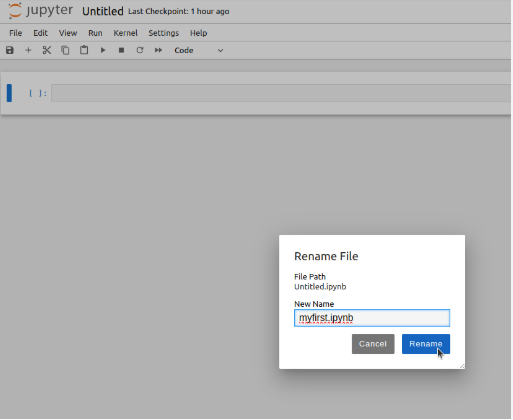

Introduction to Interactive Python Environments
Jupyter Notebook has completely changed the way developers, researchers, and students write and test Python code. Instead of writing long scripts and running them all at once, it allows you to break your work into small interactive sections called cells. Each cell can be executed independently, which makes learning and debugging much easier.
At the core of this experience is understanding how to run code in jupyter notebook in a structured and efficient way. This concept is not just about pressing a button—it is about understanding how execution flows, how memory is managed, and how outputs are generated in real time.
Unlike traditional programming tools, Jupyter gives instant feedback. You write a line of code, run it, and immediately see results. This interactive nature is what makes it extremely popular in data science and machine learning workflows.
What Makes Jupyter Notebook Unique
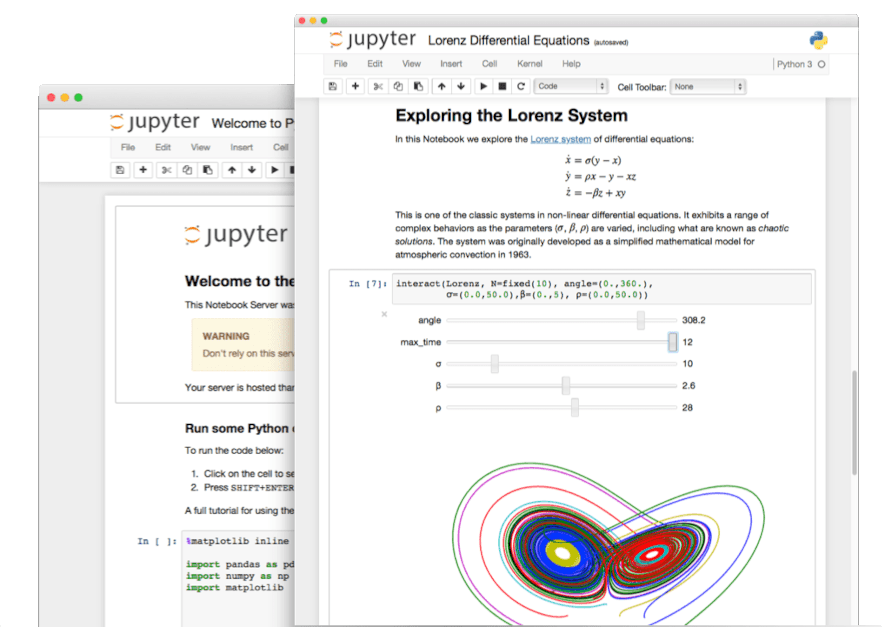
Jupyter Notebook is not just a code editor—it is a complete computational environment. It blends code, text, and visualization in a single interface, making it ideal for storytelling with data.
The notebook is divided into cells, and each cell behaves like a small independent program. This means you can test small parts of your logic without running the entire program again.
When beginners first explore how to run code in jupyter notebook, they often discover that execution is not linear like in traditional programming environments. Instead, it is flexible and interactive, which opens up powerful possibilities for experimentation.
Setting Up Jupyter Notebook for the First Time
Before executing any code, you need to install and launch Jupyter Notebook properly.
Installing Required Tools
To begin, ensure Python is installed. Then install Jupyter using:
pip install notebookAlternatively, installing Anaconda provides a pre-configured environment that includes Jupyter Notebook and many scientific libraries.
Launching the Notebook
Once installed, you can start Jupyter by running:
jupyter notebookThis command opens a browser window displaying the notebook dashboard.
At this stage, understanding how to run code in jupyter notebook becomes practical because you are now inside the environment where execution happens.
Understanding the Notebook Interface
The Jupyter interface may seem simple, but it is highly powerful. It includes:
- Toolbar for controls like saving and restarting kernels
- Code cells for writing executable Python code
- Markdown cells for documentation and notes
- Output areas for displaying results
Each component plays a key role in making your workflow smooth and organized.
A key advantage is that every cell can be executed separately, which helps in isolating errors and testing logic step by step.
Your First Code Execution Experience
Now comes the exciting part—running your first code.
Basic Execution Process
- Open a new notebook
- Click inside a code cell
- Type a simple command:
print("Hello, Jupyter!")- Press Shift + Enter
The output will instantly appear below the cell.
This is the simplest demonstration of how to run code in jupyter notebook, and it forms the foundation of everything you will do inside the environment.
Each time you execute a cell, Jupyter sends the code to a background engine called the kernel, which processes it and returns the result.
How Execution Works Behind the Scenes
Jupyter Notebook uses a kernel-based system. The kernel is responsible for executing code and storing variables in memory.
When you run a cell:
- The code is sent to the kernel
- The kernel executes it line by line
- Results are returned to the notebook interface
- Variables remain stored until the kernel is restarted
This means you can access previously defined variables in later cells, even if they are not in order.
Understanding this behavior is crucial when learning how to run code in jupyter notebook effectively, because execution order matters more than visual order.
Working with Variables and Memory
One of the most important features of Jupyter is persistent memory. Unlike scripts that reset every time, Jupyter keeps variables alive.
For example:
x = 10Later:
print(x)Even if these cells are not next to each other, the output will still work because the kernel remembers x.
However, this flexibility can sometimes create confusion if cells are executed out of order.
Common Mistakes Beginners Make
Many users struggle initially because they misunderstand how execution works.
1. Running cells randomly
This can lead to unexpected outputs.
2. Forgetting previous state
Old variables may affect new results.
3. Not restarting kernel
Restarting clears memory and ensures clean execution.
4. Misinterpreting errors
Errors appear below cells and should be read carefully.
Mistakes like these are common when learning how to run code in jupyter notebook, but they become easier to manage with practice.
Comparison: Jupyter vs Traditional Python Execution
| Feature | Jupyter Notebook | Python Script |
|---|---|---|
| Execution Style | Cell-based | Line-by-line file execution |
| Output Display | Immediate inline output | Terminal-based output |
| Learning Curve | Easy for beginners | Moderate |
| Debugging | Interactive and fast | Manual debugging required |
| Best Use Case | Data science & learning | Production applications |
This comparison highlights why Jupyter is preferred for experimentation and analysis.
Working with Data and Visual Output
Jupyter is widely used in data science because it supports powerful visualization libraries.
You can create graphs like this:
import matplotlib.pyplot as plt

x = [1, 2, 3, 4]
y = [10, 15, 20, 25]

plt.plot(x, y)
plt.show()
The output appears directly below the cell, making it easier to analyze results instantly.
This inline visualization is one of the strongest advantages of Jupyter Notebook.
Advanced Execution Techniques
Once you understand the basics of how to run code in jupyter notebook, you can explore advanced features that improve productivity.
Keyboard Shortcuts for Speed
- Shift + Enter → Run cell
- Ctrl + Enter → Run without moving
- A → Insert cell above
- B → Insert cell below
- DD → Delete cell
Magic Commands
Jupyter supports special commands for advanced operations:
%time
%matplotlib inline
These help in performance measurement and visualization control.
Kernel Control
You can restart, interrupt, or reset the kernel when needed to clear memory or fix issues.
Debugging Code Efficiently
Debugging in Jupyter is simple and visual. Errors appear immediately below the cell, making it easy to identify issues.
Common errors include:
- Syntax errors
- Name errors
- Import errors
Instead of switching tools, you can fix and rerun instantly, making the debugging cycle faster.
This interactive approach enhances learning and improves productivity.
Best Practices for Smooth Workflow
To work efficiently in Jupyter Notebook:
- Keep cells organized logically
- Add explanations using Markdown
- Avoid running cells randomly
- Restart kernel regularly during testing
- Save your notebook frequently
These habits ensure clean execution and better understanding of your project.
Understanding Execution Flow in Depth
Jupyter does not enforce top-to-bottom execution. Instead, it executes cells based on user interaction.
This means the order in which you run cells matters more than their position in the notebook.
For example, if you define a variable later but run earlier code referencing it, errors will occur.
This behavior is central to mastering how to run code in jupyter notebook efficiently and avoiding confusion.
Real-World Applications of Jupyter Notebook


Jupyter is used across multiple industries:
- Machine learning model development
- Data analysis and visualization
- Academic research
- Financial modeling
- Artificial intelligence experimentation
Its flexibility makes it a universal tool for both beginners and professionals.
Frequently Asked Questions (FAQs)
1. What is Jupyter Notebook used for?
It is used for interactive coding, data analysis, and visualization in Python and other languages.
2. Why is my code not running?
Check if the kernel is active or restart it to resolve execution issues.
3. Can I use other programming languages?
Yes, Jupyter supports multiple languages like R and Julia.
4. Do I need internet to use Jupyter?
No, it works offline once installed.
5. How do I save my work?
Use Ctrl + S or click the save icon in the toolbar.
Productive Workflow Structure
A well-organized notebook usually follows this structure:
- Introduction
- Data loading
- Data cleaning
- Analysis
- Visualization
- Conclusion
This structure improves readability and ensures better collaboration in teams.
Performance Optimization Tips
To keep Jupyter running smoothly:
- Avoid unnecessary loops
- Clear unused variables
- Restart kernel when needed
- Use optimized libraries like NumPy
These small improvements significantly enhance performance.
Conclusion
Mastering how to run code in jupyter notebook is essential for anyone entering the world of Python programming, data science, or machine learning. It is not just about execution—it is about understanding interactive computing.
Jupyter Notebook gives you the power to write, test, visualize, and debug code in one place. With practice, you will develop a smooth workflow that allows you to experiment quickly and learn efficiently.
By applying the techniques covered in this guide, you can build confidence, improve productivity, and unlock the full potential of interactive coding environments