


Introduction
Modern software development is no longer about just writing lines of code—it’s about building, testing, debugging, and executing applications efficiently in a powerful environment. One of the most widely used tools for this purpose is Visual Studio, a feature-rich integrated development environment (IDE) created by Microsoft.
For beginners, understanding how to run code in visual studio is often the first major milestone in their programming journey. It connects theory with real-world output and helps developers see immediate results of their logic.
Visual Studio simplifies everything from writing code to compiling and executing it with just a few clicks. Whether you are building a simple console application or a complex enterprise-level software system, this IDE provides all the tools you need in one place.
In this guide, we will explore every aspect of running programs in Visual Studio in a deeply practical and easy-to-understand way.
Understanding Visual Studio Execution Environment

Before diving into execution steps, it’s important to understand how Visual Studio works behind the scenes.
Visual Studio is not just a text editor—it is a complete development ecosystem. It includes:
- Code editor for writing programs
- Compiler for converting code into machine-readable format
- Debugger for identifying and fixing errors
- Runtime environment for executing applications
When learners search for how to run code in visual studio, they are essentially trying to understand how these components work together.
The IDE follows a structured workflow:
- Write code
- Build the solution
- Execute program
- Debug if required
This cycle repeats throughout the development process and forms the foundation of professional software engineering.
Setting Up Visual Studio for Code Execution
Proper setup is critical for smooth execution. Without correct configuration, even simple programs may fail to run.
To prepare your system, you must install Visual Studio with the appropriate workloads. These workloads define what kind of applications you can build.
Common workloads include:
- Desktop development with C++
- .NET desktop development
- Python development
- Web application development
Once installed, the environment becomes ready for compiling and running code.
Project setup is equally important. When creating a new project, you must choose:
- Language (C#, C++, Python, etc.)
- Project type (Console, Web, Desktop)
- Framework version
This ensures that everything required for execution is properly configured.
At this stage, beginners start to understand the practical side of how to run code in visual studio because setup directly impacts execution success.
Step-by-Step Code Execution Workflow
Now let’s move into the actual execution process. Visual Studio simplifies everything, but understanding each step helps avoid confusion.
First, you create or open a project. Inside the project, you write your code in the editor window. Once the logic is ready, the IDE takes over the rest.
After writing your program, the build process begins. The compiler checks syntax, resolves references, and converts code into an executable format.
Finally, you execute the program using either debugging mode or normal execution mode.
At this point, learning how to run code in visual studio becomes practical rather than theoretical. You see your program produce output in real time, which strengthens understanding of programming logic.
The execution flow can be summarized as:
Write → Build → Run → Output → Debug (if needed)
Running Programs Using Different Methods
Visual Studio provides multiple execution options depending on your workflow needs.
Some developers prefer running with debugging enabled, while others prefer faster execution without debugging tools.
Here is a comparison table to understand execution modes better:
| Execution Mode | Shortcut | Purpose | Performance |
|---|---|---|---|
| Debug Mode | F5 | Step-by-step debugging | Slower |
| Run Without Debugging | Ctrl + F5 | Direct execution | Faster |
| Build Only | Ctrl + Shift + B | Compilation check | No execution |
| Start Project | Right-click → Set as Startup | Project selection | Flexible |
Each method is useful in different development stages. Beginners often start with debug mode, while professionals prefer optimized execution.
Debugging and Error Handling in Visual Studio
Debugging is one of the most powerful features of Visual Studio. It allows developers to inspect code line by line and identify issues in real time.
When learning how to run code in visual studio, debugging plays a key role because most beginners encounter errors during execution.
Visual Studio provides tools like:
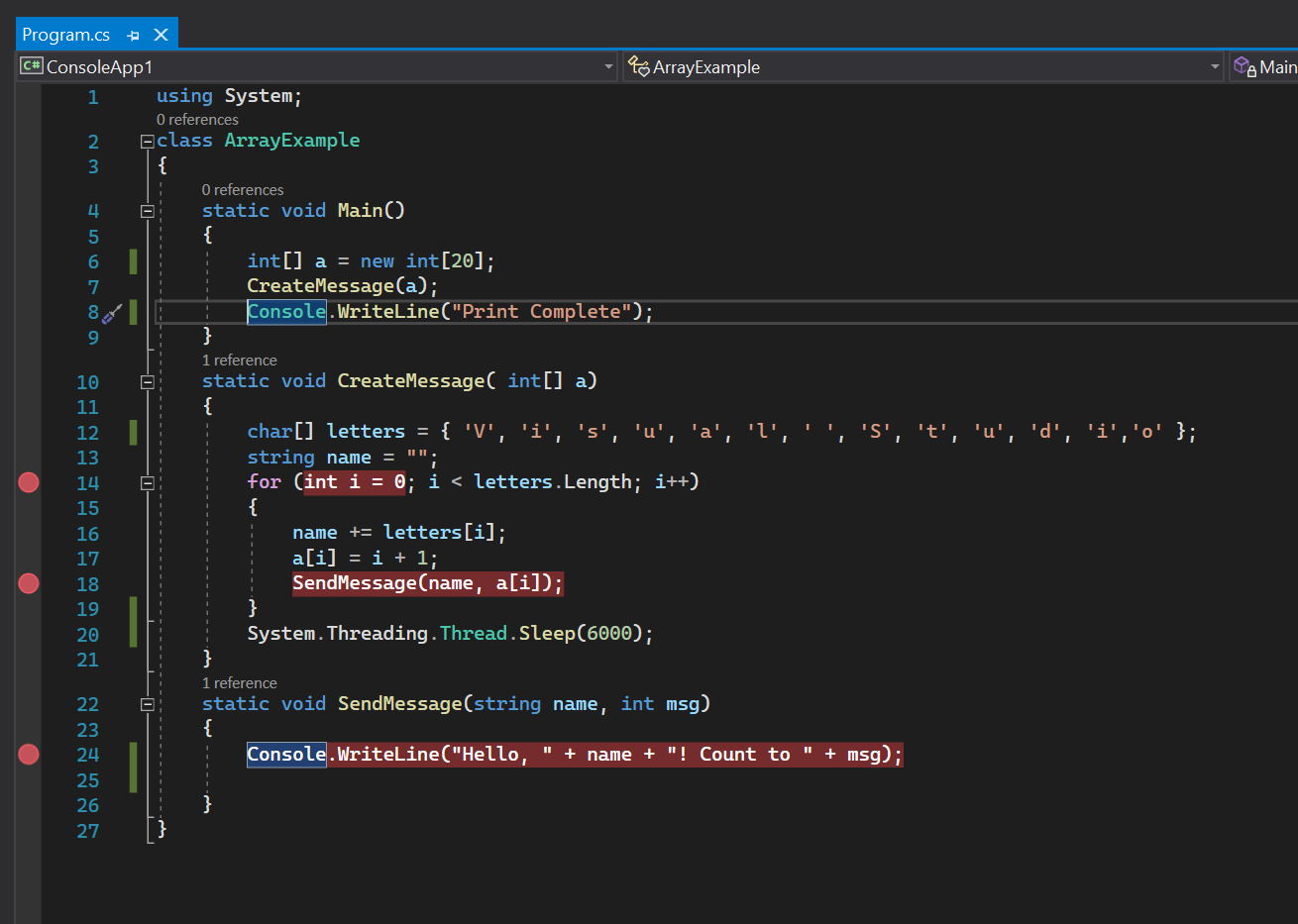
Breakpoints
Breakpoints allow you to pause execution at specific lines of code to inspect variables and program flow.
Watch Window
This tool lets you track variable values as the program runs.
Immediate Window
You can test expressions instantly during debugging without modifying your code.
Errors are also highlighted automatically in the editor, making correction faster and easier.
Instead of guessing what went wrong, developers can clearly see the issue and fix it efficiently.
Advanced Execution Techniques for Professionals
As developers gain experience, they move beyond basic execution and start using advanced features of Visual Studio.
One such feature is multi-project execution, where multiple projects run within a single solution. This is commonly used in large-scale applications.
Another advanced capability is remote debugging, which allows developers to debug applications running on another machine or server.
Unit testing integration is also widely used in professional environments. It helps verify individual components of code automatically.
At this stage, how to run code in visual studio is no longer just about pressing a button—it becomes part of a larger development workflow involving automation, testing, and optimization.
Performance Optimization During Execution
Efficient execution is not just about running code—it’s about running it smoothly and quickly.
Visual Studio provides several ways to improve performance:
- Switching to Release mode for optimized execution
- Cleaning solution regularly to remove temporary files
- Disabling unnecessary extensions
- Reducing background processes
When working on large projects, performance optimization becomes extremely important.
Understanding how to run code in visual studio also involves learning how to make execution faster and more stable under different conditions.
Troubleshooting Common Execution Issues
Even experienced developers face problems while running programs.
Some common issues include:
- Program not starting
- Build failures
- Missing dependencies
- Slow execution
- Incorrect output
Most of these problems are related to configuration or build settings.
A simple fix often includes rebuilding the solution or checking the startup project. In other cases, updating SDKs or repairing Visual Studio installation resolves the issue.
Troubleshooting is a natural part of learning how to run code in visual studio, and mastering it builds confidence in handling real-world development challenges.
Best Practices for Smooth Execution
Writing code is only half the job; executing it properly is equally important.
To ensure smooth performance, developers should:
- Save projects frequently
- Organize files properly
- Use meaningful variable names
- Keep solutions clean
- Update Visual Studio regularly
These habits may seem simple but significantly improve productivity over time.
Developers who understand these principles find how to run code in visual studio much easier and more efficient in practice.
Frequently Asked Questions (FAQs)
1. What is the easiest way to execute code in Visual Studio?
Pressing F5 is the simplest way. It builds and runs your program automatically.
2. Why is my program not running properly?
It may be due to build errors, missing references, or incorrect project setup.
3. Can Visual Studio run multiple programming languages?
Yes, it supports C#, C++, Python, JavaScript, and more through extensions.
4. What is the difference between debug and normal run?
Debug mode allows step-by-step inspection, while normal run executes faster.
5. Is internet required to run programs?
No, Visual Studio can run code offline after installation.
Visual Studio is a powerful IDE that allows developers to write, compile, debug, and execute code efficiently using integrated tools and a structured development environment.
Conclusion
Learning programming is not just about writing logic—it is about bringing that logic to life through execution. Visual Studio provides a powerful and beginner-friendly environment that makes this process seamless.
Once you understand project setup, build systems, debugging tools, and execution methods, working with code becomes intuitive and efficient.
At its core, mastering how to run code in visual studio gives you the ability to transform ideas into working applications. With practice, patience, and proper understanding of the IDE, you can move from simple programs to complex software systems with confidence.
The key is consistency—keep practicing, explore debugging tools, and experiment with different project types. Over time, running code will become second nature, and Visual Studio will feel like a natural extension of your programming workflow.