


Introduction
Jupyter Notebook has become one of the most trusted tools for programmers, students, analysts, teachers, and data scientists around the world. It offers a clean environment where you can write code, run commands, explain your logic, and view outputs in one place. Unlike traditional code editors that often require switching between files, terminals, and result windows, Jupyter keeps everything organized inside a single notebook.
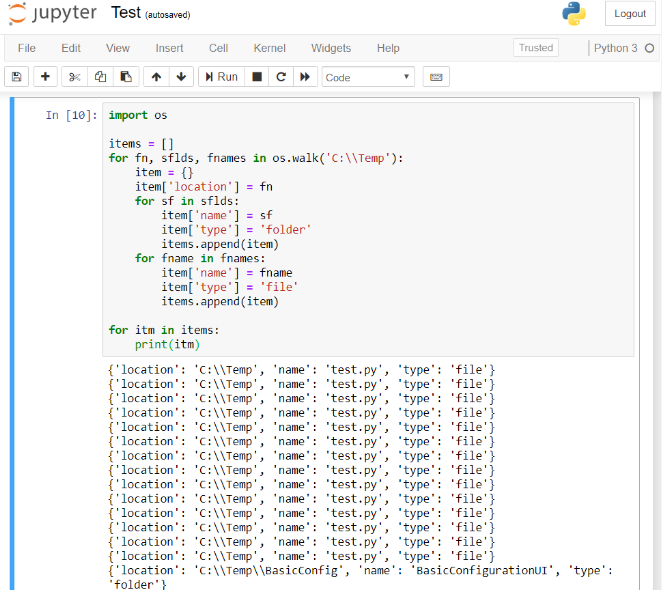
For beginners, the first question is usually simple: how to run code in jupyter notebook without confusion. The answer is easier than many people expect. Jupyter was designed to make coding interactive, visual, and beginner-friendly. You can write code in small blocks called cells, run them one by one, and instantly see the result below each cell.
This guide will walk you through every important detail in a clear and natural way. You will learn how notebooks work, how to execute code correctly, how to fix common issues, and how to improve your productivity. Whether you are learning Python for the first time or returning after a break, this article will help you build confidence and work smarter.
What Is Jupyter Notebook?
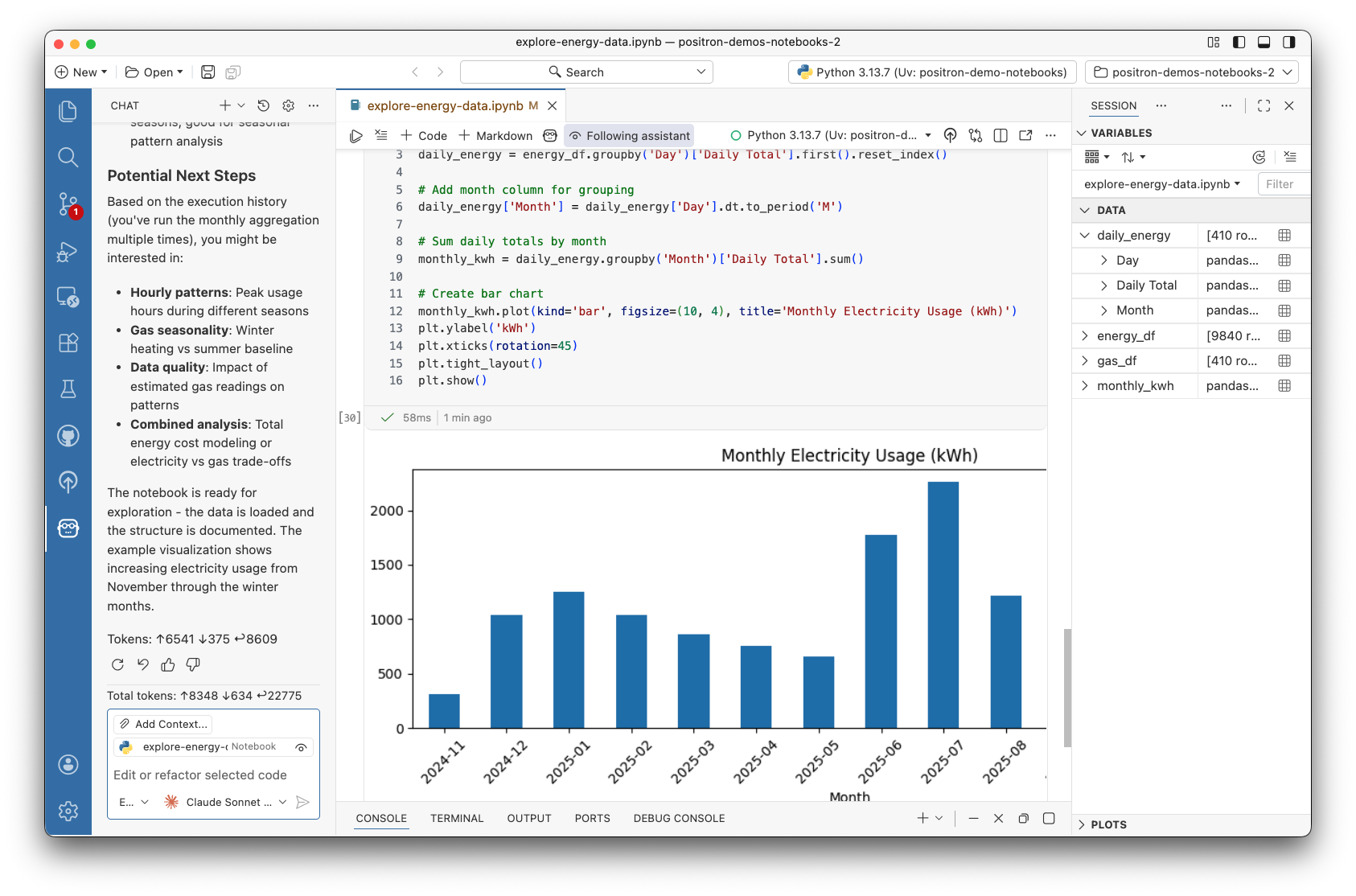
Jupyter Notebook is an open-source web-based application used to create and share documents that contain live code, text, formulas, charts, and outputs. It is especially popular in the Python community, but it also supports many other programming languages through separate kernels.
The word “Jupyter” comes from three programming languages: Julia, Python, and R. Over time, it became much bigger than those original languages and now supports many coding environments.
What makes Jupyter special is its interactive structure. Instead of writing one large script and running the entire file, you can write smaller parts and run them independently. This makes learning easier because you can test ideas immediately.
For example, if you want to calculate a formula, test a loop, or inspect data, you can do it in seconds. That is one reason millions of people search for how to run code in jupyter notebook every year.
Why Jupyter Notebook Is So Popular
Jupyter Notebook has grown in popularity because it solves many common coding frustrations. It gives users a smooth workflow and saves time.
Here are some of the biggest reasons people love it:
- It is beginner-friendly and visual
- You can run code step by step
- It supports notes and explanations
- Graphs appear directly in the notebook
- Great for Python learning and data science
- Easy to share with others
- Perfect for experiments and tutorials
Instead of feeling overwhelmed by a full coding project, beginners can focus on one cell at a time. This lowers stress and improves understanding.
Installing Jupyter Notebook
Before you can start coding, you need to install Jupyter Notebook on your computer.
Method 1: Install with Anaconda
Anaconda is one of the easiest options because it includes:
- Python
- Jupyter Notebook
- Popular libraries like NumPy and Pandas
After installing Anaconda, you can open Jupyter from the Anaconda Navigator.
Method 2: Install with pip
If Python is already installed, use:
pip install notebookThen launch it with:
jupyter notebookA browser window will open where you can create notebooks.
Learning setup basics is the first step in understanding how to run code in jupyter notebook successfully.
Understanding the Jupyter Interface
When Jupyter opens, you will see a dashboard. This is where your folders and notebook files are displayed. Notebook files usually end in .ipynb.
Once you open a notebook, you will see several key sections.
| Area | Purpose |
|---|---|
| Menu Bar | File, Edit, View, Kernel tools |
| Toolbar | Quick buttons like Save and Run |
| Cells | Write code or text |
| Output Area | Shows results |
| Kernel Status | Busy or idle indicator |
Understanding the layout saves time and helps you navigate with confidence.
What Are Cells?
Cells are the building blocks of a notebook. Everything happens inside them.
Code Cells
Use code cells to write Python or another supported language.
Example:
print("Hello World")When you run it, the result appears below.
Markdown Cells
Use Markdown cells for headings, notes, instructions, and formatted text.
Example:
# Sales Analysis
This notebook reviews monthly revenue.
A smart notebook uses both cell types together.
The Main Answer: How to Run Code
The easiest method is:
- Click inside a code cell
- Type your code
- Press Shift + Enter
That command runs the current cell and moves to the next one.
Example:
10 + 5Output:
15This is the most common solution when users ask how to run code in jupyter notebook for the first time.
Other Ways to Run Code
Jupyter offers several execution methods depending on your workflow.
Ctrl + Enter
Runs the current cell but stays in the same cell.
Useful when testing code repeatedly.
Alt + Enter
Runs the current cell and creates a new one below.
Great when writing long notebooks.
Toolbar Run Button
There is also a Run button in the toolbar.
Useful for mouse-based users.
Why Execution Order Matters
Many beginners think cells run automatically from top to bottom. They do not.
Jupyter runs only the cells you choose. That means order matters.
Example:
Cell 1
name = "Asha"Cell 2
print(name)If you run Cell 2 first, Python gives an error because name was never created in memory.
Understanding order is a critical part of how to run code in jupyter notebook correctly.
What Is the Kernel?
The kernel is the engine behind your notebook. It runs code and stores variables in memory.
If the kernel is active, your notebook remembers objects such as:
- Variables
- Imported libraries
- Functions
- DataFrames
Kernel States
- Idle = Ready
- Busy = Running code
- Disconnected = Needs restart
Without the kernel, your code cannot run.
Restarting the Kernel
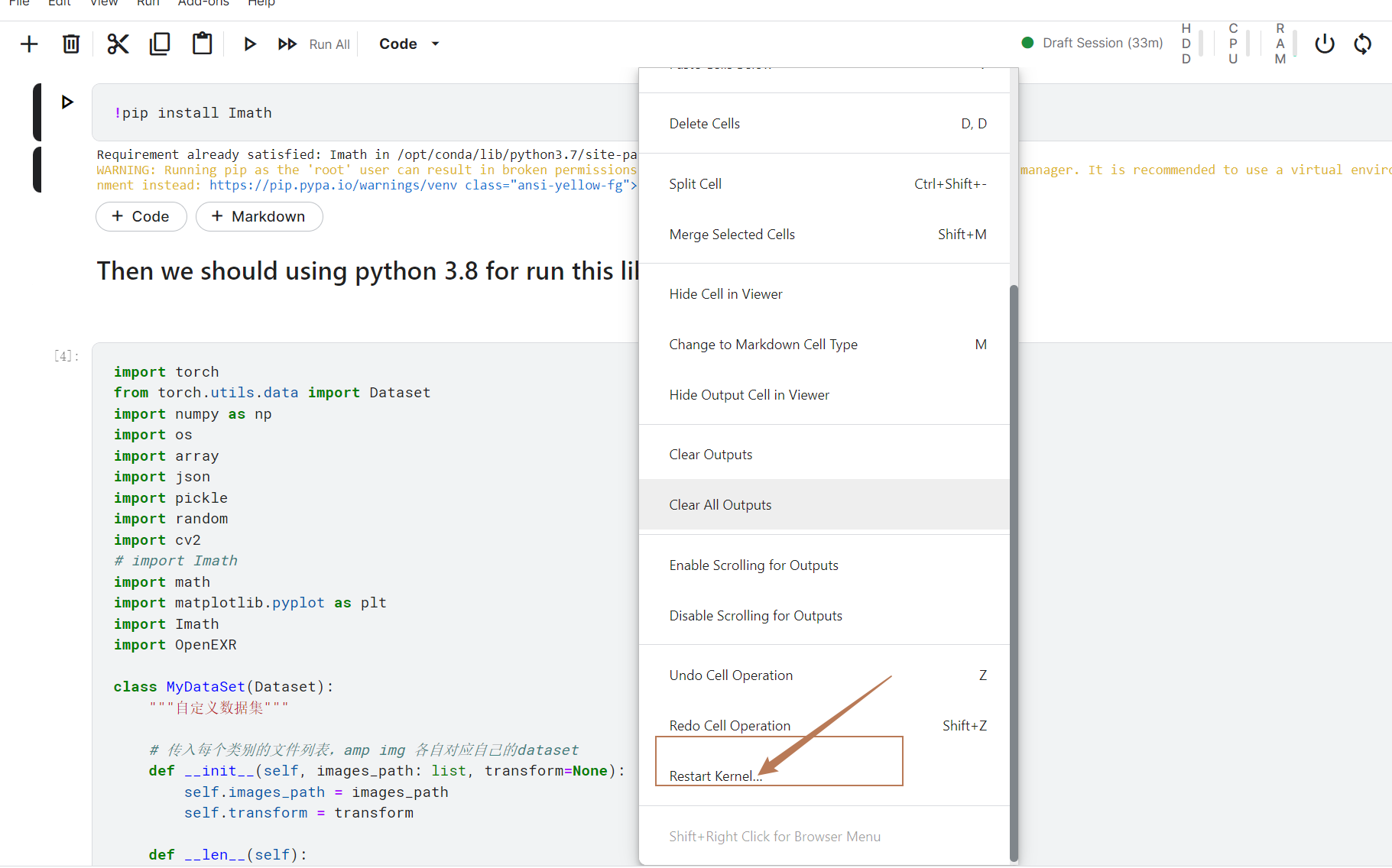
Sometimes notebooks behave strangely. Variables may conflict, memory may fill up, or a cell may freeze.
Use:
Kernel > Restart
This clears memory and starts fresh.
After restarting, rerun cells from the top.
This is a powerful fix whenever how to run code in jupyter notebook seems harder than it should be.
Running Multiple Cells
Larger notebooks contain many cells. You may want to run everything in one step.
Use:
Cell > Run All
This executes all cells from top to bottom.
It is useful when:
- Testing a finished notebook
- Reproducing analysis
- Preparing to share with others
- Refreshing outputs after restart
Writing Your First Practical Example
Let’s build a beginner notebook.
Cell 1
product = "Laptop"Cell 2
price = 45000Cell 3
print(product, price)Output:
Laptop 45000This shows how cells work together logically.
Using Math and Calculations
Jupyter is excellent for simple calculations.
25 * 4Output:
100You can also do advanced math:
import math
math.sqrt(81)
Output:
9.0Students love notebooks because results appear instantly.
Working with Data
Jupyter is famous for data science.
Example:
import pandas as pdThen:
data = {"Month":["Jan","Feb"],"Sales":[200,300]}
df = pd.DataFrame(data)
df
A neat table appears directly below the cell.
This is why professionals learn how to run code in jupyter notebook early in their careers.
Creating Charts
Visual output is one of Jupyter’s biggest strengths.
import matplotlib.pyplot as plt

x = [1,2,3]
y = [2,4,6]

plt.plot(x,y)
plt.show()
A chart appears in the notebook itself.
No need for separate windows or exports.
Using Markdown for Better Notebooks
A notebook should not be only code. Add explanations.
Example Markdown:
## Monthly Sales Review
The next section compares growth trends.
Markdown helps readers understand your thinking.
Use it for:
- Titles
- Notes
- Instructions
- Conclusions
- Reports
Saving Your Notebook
Always save your work regularly.
Use:
- Ctrl + S
- Save icon
- File > Save and Checkpoint
Notebook files can store code, text, and outputs together.
Saving is one of the smartest habits when learning how to run code in jupyter notebook daily.
Common Errors and Fixes
Even skilled users make mistakes. Here are common problems.
NameError
print(score)If score does not exist, you get an error.
Fix: Run the cell that defines it.
SyntaxError
Missing brackets, quotes, or colons.
Fix: Check typing carefully.
ModuleNotFoundError
A package is missing.
Fix:
!pip install package-nameFrozen Notebook
Long loop or heavy process.
Fix: Interrupt or restart kernel.
How to Stop Running Code
If a cell runs too long:
Go to:
Kernel > Interrupt
Use it when:
- Infinite loops
- Wrong code logic
- Large accidental calculations
This prevents wasted time.
Useful Keyboard Shortcuts
Shortcuts improve speed dramatically.
| Shortcut | Action |
|---|---|
| Shift + Enter | Run and move next |
| Ctrl + Enter | Run and stay |
| Alt + Enter | Run and add new cell |
| A | Add cell above |
| B | Add cell below |
| DD | Delete cell |
| Z | Undo delete |
Learning shortcuts transforms productivity.
Best Practices for Clean Coding
Keep Cells Small
Short cells are easier to test and debug.
Use Clear Variable Names
Good:
monthly_salesBad:
x1Comment Important Logic
# calculate average priceOrganize Imports at Top
Keep libraries in one place.
Restart and Run All Before Sharing
Ensures the notebook works from scratch.
These habits strengthen your mastery of how to run code in jupyter notebook.
When to Use Jupyter Notebook
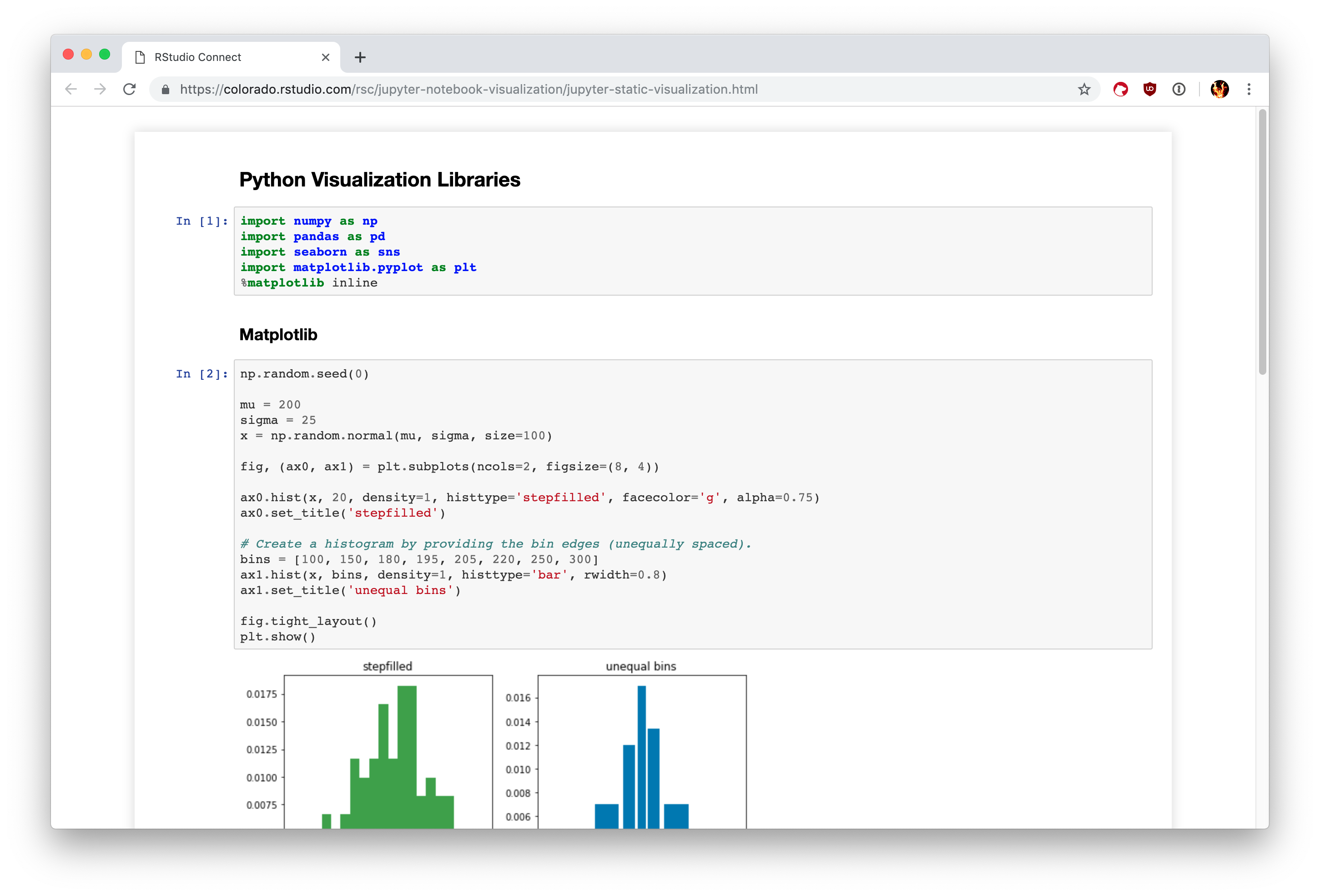
Jupyter is excellent for:
- Python practice
- Data analysis
- Machine learning experiments
- Homework assignments
- Research reports
- Finance calculations
- Visual dashboards
- Tutorials
It may be less ideal for very large software applications with many files.
Jupyter vs Traditional Editors
| Feature | Jupyter Notebook | Standard IDE |
|---|---|---|
| Run line by line | Yes | Limited |
| Built-in charts | Excellent | Moderate |
| Notes with code | Yes | Limited |
| Best for learning | Excellent | Good |
| Large apps | Moderate | Excellent |
Each tool has strengths.
Advanced Productivity Tips
Use Magic Commands
%timeit sum(range(1000))Measures speed.
List Variables
%whoShows active variables.
Clear Output
Use menu options to keep notebooks light and fast.
Duplicate Cells
Useful for testing multiple versions.
Click inside a Jupyter code cell and press Shift + Enter to run it instantly. The output will appear directly below the cell.
Restart the kernel and run all cells before sharing your notebook so others can reproduce the same results.
How Beginners Improve Faster
The best learning method is repetition.
Create a notebook and practice:
- Variables
- Loops
- Conditions
- Functions
- Lists
- DataFrames
- Charts
The more you experiment, the easier how to run code in jupyter notebook becomes.
Mistakes to Avoid
Running Cells Randomly
Always follow logical order.
Ignoring Errors
Read messages carefully.
Forgetting Saves
Save often.
Huge Cells
Break code into smaller pieces.
No Notes
Use Markdown for clarity.
Avoiding these mistakes saves frustration.
Working Like a Professional
Professionals often structure notebooks like this:
- Title
- Goal of project
- Import libraries
- Load data
- Clean data
- Analysis
- Charts
- Conclusion
This makes notebooks easy to review and share.
Frequently Asked Questions
1. What is the easiest way to run code?
Click the cell and press Shift + Enter.
2. Can I run all cells together?
Yes. Use Cell > Run All.
3. Why does my variable disappear?
The kernel may have restarted.
4. Can I use Jupyter offline?
Yes, once installed locally.
5. Is Jupyter only for Python?
No, it supports multiple languages.
6. How long does it take to learn?
Most beginners understand the basics in one day.
7. Why do people search how to run code in jupyter notebook so often?
Because Jupyter is one of the most popular tools for learning Python and data science.
Conclusion
Jupyter Notebook is one of the easiest and most powerful environments for interactive coding. It allows you to write code in small cells, test ideas instantly, create charts, explain your work, and organize projects in one place. That flexibility makes it ideal for beginners and professionals alike.
To succeed, remember the core process: create a code cell, type your code, and run it using Shift + Enter. Learn execution order, save regularly, restart the kernel when needed, and use shortcuts to work faster. Once these basics become habits, your productivity increases dramatically.
If you want real progress, open a notebook today, create a few cells, and practice. The fastest way to master coding is not reading forever—it is doing.