
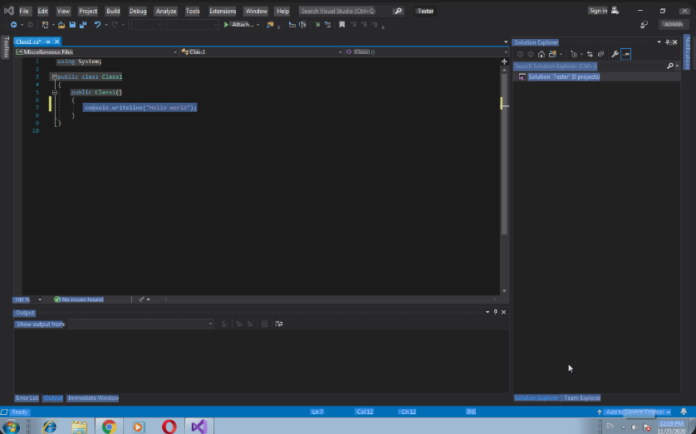


Introduction
Visual Studio is one of the most powerful development environments ever created for building modern applications. It is widely used by developers for desktop apps, web apps, mobile apps, and even cloud-based solutions. However, for beginners, one of the most confusing parts is understanding how execution actually works inside the IDE.
Before writing complex applications, every developer must understand how compilation, execution, and debugging flow work together inside this environment. Learning these basics helps you build confidence and reduces errors during development.
In this detailed guide, we will explore everything from setup to execution, debugging, and troubleshooting in a structured and beginner-friendly way. By the end, you’ll have a clear understanding of how Visual Studio handles programs internally and how you can use it effectively for real-world projects.
One of the most important foundations for beginners is understanding how to run code in visual studio.
Understanding Visual Studio as a Development Environment
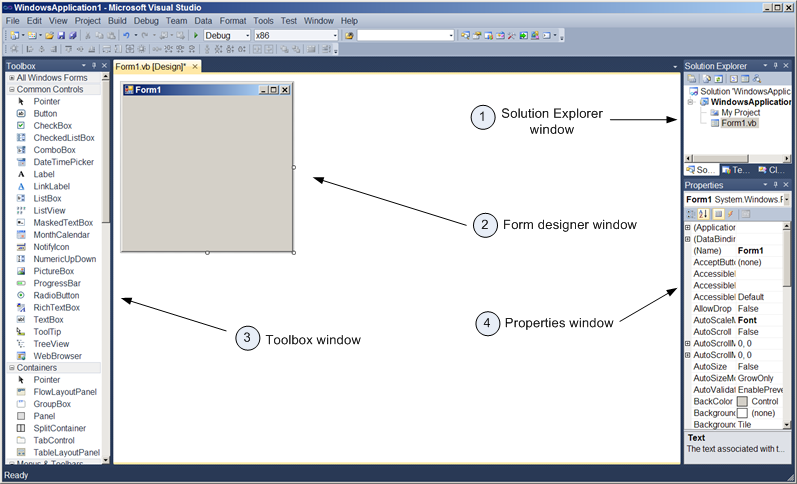
Visual Studio is not just a simple code editor. It is a full-featured integrated development environment (IDE) designed to handle large-scale software development. It combines writing, compiling, testing, and debugging in one place.
When you create a project, Visual Studio automatically structures everything into a “solution.” This solution contains all related files, dependencies, and configurations required for execution.
Unlike basic text editors, Visual Studio provides intelligent tools like IntelliSense, error highlighting, and real-time debugging support. These features make it easier to write error-free code and test it immediately.
It supports multiple programming languages, including C#, C++, Python, JavaScript, and more. Each language has its own execution behavior, but the IDE manages them under a unified interface.
Setting Up Visual Studio for Smooth Execution
Before running any program, proper installation and configuration are essential. A poorly configured environment can lead to build errors and execution failures.
First, you need to download Visual Studio from Microsoft’s official website. During installation, you must choose workloads depending on your development goals. For example, if you are working with desktop applications, select “.NET Desktop Development.” If you are working with native applications, choose “C++ Development Tools.”
After installation, Visual Studio allows you to sign in with a Microsoft account. While optional, this helps with syncing settings and accessing cloud-based features.
A properly configured environment ensures smooth execution and reduces unnecessary troubleshooting later. Once setup is complete, you are ready to explore actual coding and execution workflows.
Running Code in C# Projects
C# is one of the most beginner-friendly languages in Visual Studio and is widely used for building desktop and web applications.
Understanding how to run code in visual studio in C# projects is the first step toward mastering the IDE.
When you create a C# Console Application, Visual Studio automatically generates a basic structure with a Main method. This is the entry point of the program.
Once your code is written, execution becomes simple. You can press the green “Start” button or use the F5 shortcut to run your program. Visual Studio will compile your code and launch a console window showing output.
If there are errors, the IDE will display them before execution, preventing faulty programs from running.
C# execution is smooth because the .NET runtime handles memory management and execution flow internally, making it highly reliable for beginners.
Running Code in C++ Projects
C++ is slightly more complex compared to C# because it involves manual compilation and system-level execution.
Learning how to run code in visual studio for C++ projects requires understanding compiler behavior and build configurations.
When you create a C++ project, Visual Studio sets up a native environment where code must be compiled before execution. The main function acts as the entry point.
To run a program, you typically press Ctrl + F5 for execution without debugging or F5 for execution with debugging enabled. Before execution, the compiler checks the entire code for errors and generates an executable file.
C++ projects often require careful configuration of headers, libraries, and dependencies. Missing components can prevent successful execution, making setup slightly more advanced compared to C#.
Despite its complexity, C++ offers high performance and is widely used in game development, operating systems, and embedded systems.
Using the Terminal for Execution
Visual Studio also includes an integrated terminal that allows developers to run code manually using command-line tools.
This feature is extremely useful when working with scripting languages, package managers, or automation tools.
You can open the terminal from the View menu and choose PowerShell or Command Prompt. From there, you can navigate to your project directory and execute commands directly.
The terminal is especially useful for developers working with Node.js, Python, or .NET CLI tools, where command-line execution is common.
It provides flexibility beyond the graphical interface and helps simulate real-world production environments.
Debugging and Execution Flow in Visual Studio
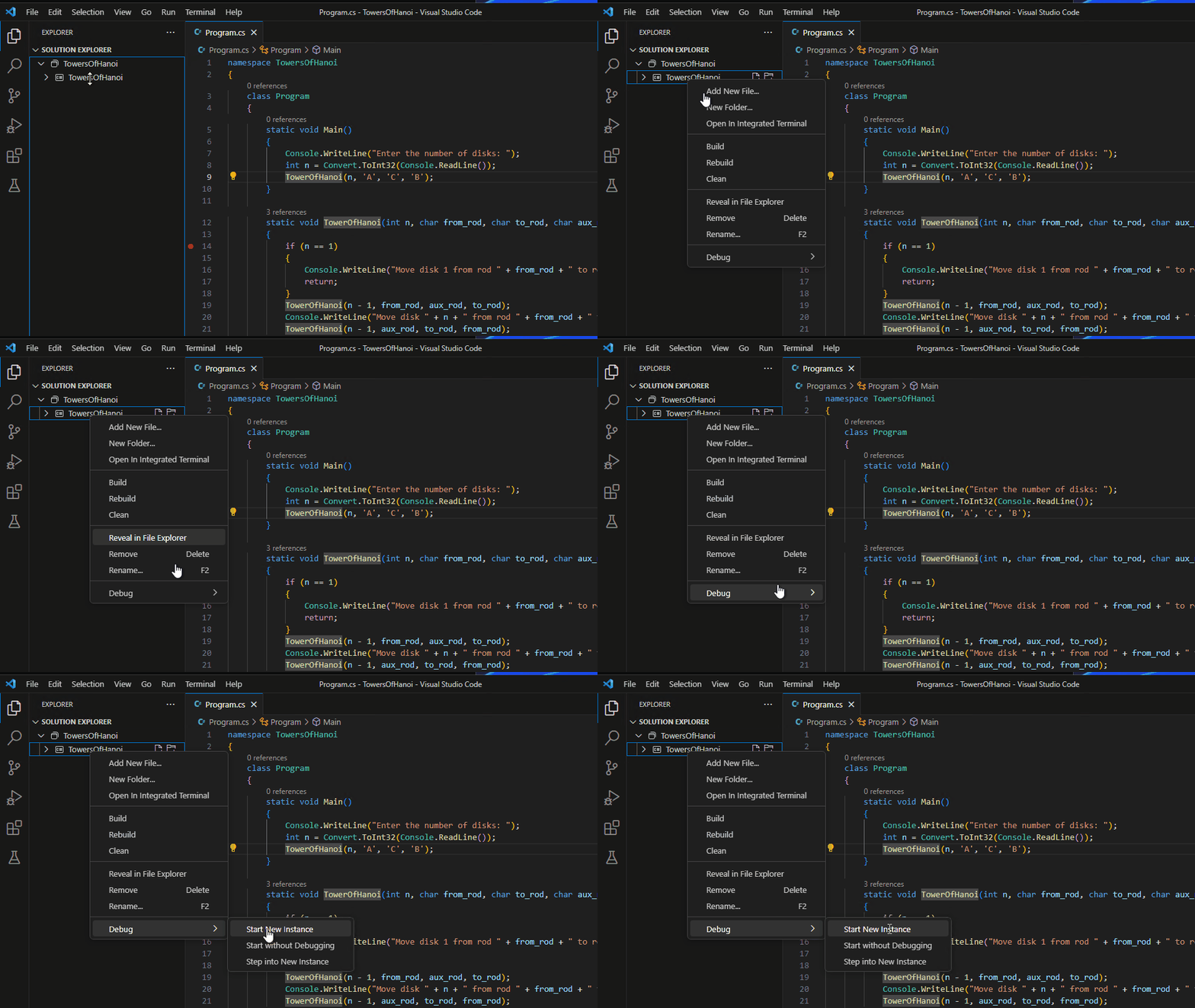
Debugging is one of the strongest features of Visual Studio and plays a critical role in understanding program behavior during execution.
When working with how to run code in visual studio, debugging helps you identify logical errors that cannot be detected during compilation.
You can set breakpoints in your code, which pause execution at specific lines. This allows you to inspect variable values, memory states, and execution flow step-by-step.
The IDE provides tools like “Step Into,” “Step Over,” and “Step Out,” which help you control how the program runs during debugging sessions.
This process is extremely helpful for understanding how code behaves in real-time and is essential for solving complex programming issues.
Common Errors During Execution and Their Fixes
Even experienced developers encounter errors while running programs in Visual Studio. Understanding these issues helps you fix them quickly and continue development without delays.
One of the most common issues is missing SDKs or runtimes. Without proper frameworks installed, the program cannot execute.
Another common issue is build failure due to syntax errors or incorrect configurations. Visual Studio usually highlights these errors before execution begins.
Sometimes, project misconfiguration can also prevent programs from running properly. In such cases, cleaning and rebuilding the solution often resolves the issue.
Learning how to run code in visual studio also involves understanding these common errors and how to troubleshoot them efficiently.
Advanced Execution Techniques
Once you are comfortable with basic execution, you can explore advanced techniques that improve productivity and workflow efficiency.
Visual Studio supports features like hot reload, which allows you to make changes while the program is running without restarting it completely. This significantly speeds up development.
You can also configure multiple startup projects, which is useful for applications with multiple components such as backend and frontend systems.
Another powerful feature is Release Mode execution, which optimizes performance by removing debugging overhead and unnecessary logs.
Developers working on large projects often rely on these advanced features to streamline their workflow and reduce development time.
Comparison Table: Execution Methods in Visual Studio
| Execution Method | Best Use Case | Speed | Debugging Support | Difficulty Level |
|---|---|---|---|---|
| F5 (Debug Mode) | Testing & debugging | Medium | Full support | Easy |
| Ctrl + F5 | Quick execution | Fast | Limited | Easy |
| Terminal Execution | Advanced workflows | Fast | Manual | Medium |
| Build + Run | Large projects | Medium | Full support | Medium |
This comparison helps developers choose the right execution method depending on their project requirements and experience level.
Best Practices for Smooth Execution
To ensure smooth development experience, it is important to follow best practices while working with Visual Studio.
Always keep your SDKs updated to avoid compatibility issues. Organize your projects properly using solution structures to avoid confusion.
Avoid unnecessary extensions that slow down performance. Regularly clean and rebuild your solution to maintain stability.
Using keyboard shortcuts like F5 and Ctrl + F5 improves workflow efficiency significantly.
These practices not only improve execution speed but also reduce the chances of runtime errors.
Frequently Asked Questions (FAQs)
1. Can beginners easily use Visual Studio?
Yes, Visual Studio is designed to be beginner-friendly, especially for C# and web development.
2. Why does my program not run after building?
This usually happens due to configuration issues or missing dependencies.
3. Is internet required to run programs in Visual Studio?
No, internet is only required for downloading packages or updates.
4. Can I run Python in Visual Studio?
Yes, with the Python workload installed, you can run Python programs easily.
5. What is the fastest way to execute code?
Using Ctrl + F5 is the fastest way to run code without debugging.
Conclusion
Visual Studio is a powerful and flexible IDE that simplifies the entire software development process. From writing code to compiling and debugging, everything is integrated into a single platform.
By understanding project structure, execution flow, debugging tools, and advanced features, you can significantly improve your productivity as a developer.
Most importantly, mastering how to run code in visual studio gives you full control over your development environment and helps you build applications efficiently and confidently.